1
Upload Your Photo
Upload any photo you want to engrave - portraits, pets, logos, illustrations, or product images.
Create xTool-ready designs from any photo. Optimized for xTool Creative Space and all xTool laser machines.
Updated · Free · No signup
Drop your photo here
or click to browse
PNG, JPG, WEBP up to 10MB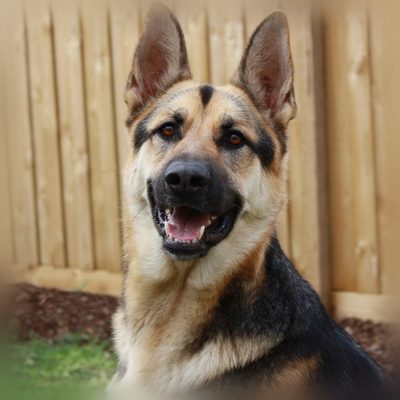
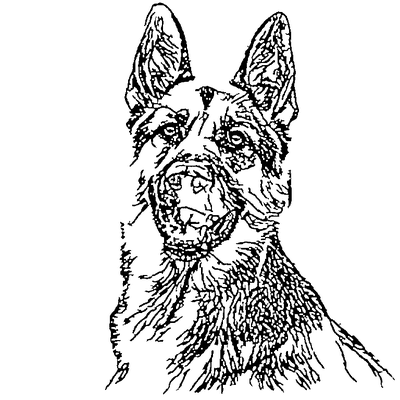
AI handles the complex image processing automatically
Upload any photo you want to engrave - portraits, pets, logos, illustrations, or product images.
Crop to your subject and match the aspect ratio to your material or workpiece size.
AI removes background, extracts clean lineart, and creates vector paths optimized for xTool laser engraving.
Download SVG and import into xTool Creative Space. Position on your material, set power/speed, and engrave.
SVG files are tuned for xTool Creative Space import - clean paths, correct scaling, and no import errors or broken geometry.
Adjust detail level based on your xTool model. Finer detail for the high-resolution P2 CO2, bolder lines for the D1 diode.
AI preserves facial features and important details for portrait engravings - the most popular use case for xTool owners.
Clean up your design, remove artifacts, or add text using our built-in editor before importing to Creative Space.
Works with xTool D1, D1 Pro, P2, S1, F1, M1, and any future xTool machines that accept SVG files.
Go from photo to engrave-ready file without needing Illustrator, Inkscape, or LightBurn. Everything in your browser.
Engrave personalized portraits and photos on cutting boards, coasters, and jewelry.
Create engraveable product designs for Etsy shops and craft fairs.
Turn pet photos into beautiful engraved keepsakes on wood or acrylic.
Create detailed sign engravings from logos and artwork.
Open xTool Creative Space, click the import button or use File > Import, and select your SVG file. The design will appear on your canvas ready to position. Set your material type and the software will suggest appropriate speed and power settings.
The xTool P2 (55W CO2) produces the finest photo engravings due to its small spot size and high power. The D1 Pro (10W diode) is excellent for detailed work on wood and acrylic at a lower price point. The F1 is ideal for small items like jewelry and keychains.
Yes, the SVG output is fully compatible with xTool Creative Space. The file imports cleanly without errors, and all paths are recognized as engraveable vector elements. You can set material type and let Creative Space suggest optimal settings.
xTool machines can engrave wood, plywood, acrylic, leather, anodized aluminum, slate, glass (with marking spray), fabric, paper, and many other materials. The D1 Pro handles most craft materials, while the P2 adds acrylic cutting and deeper engraving capability.
Yes, the SVG paths can be assigned to either engrave or cut operations in xTool Creative Space. Use line operations for engraving and increase power for cutting through material. You can also duplicate elements and assign different operations to each copy.
Upload your image now and get a professional vector file in seconds