1. Getting Started
Photo2Vector converts your photos into clean vector files for laser engraving and cutting: line art by default, or a silhouette, outline, stencil or halftone. The entire process takes just a few clicks, but you have full control over every step if needed.
What You'll Need
- A photo - JPG, PNG, or WEBP format (max 10MB)
- Modern browser - Chrome, Firefox, Safari, or Edge
- Laser software - EZCAD, LightBurn, LaserGRBL, etc. for the final engraving
Best Photo Tips
Good Photos
- Clear subject separation from background
- Good lighting, no harsh shadows
- High resolution (1000px+ recommended)
- Front-facing portraits work best for line art (side profiles for silhouettes)
Avoid
- Busy, cluttered backgrounds
- Very dark or overexposed photos
- Low resolution or blurry images
- Multiple overlapping subjects
2. Upload & Crop
Uploading Your Photo
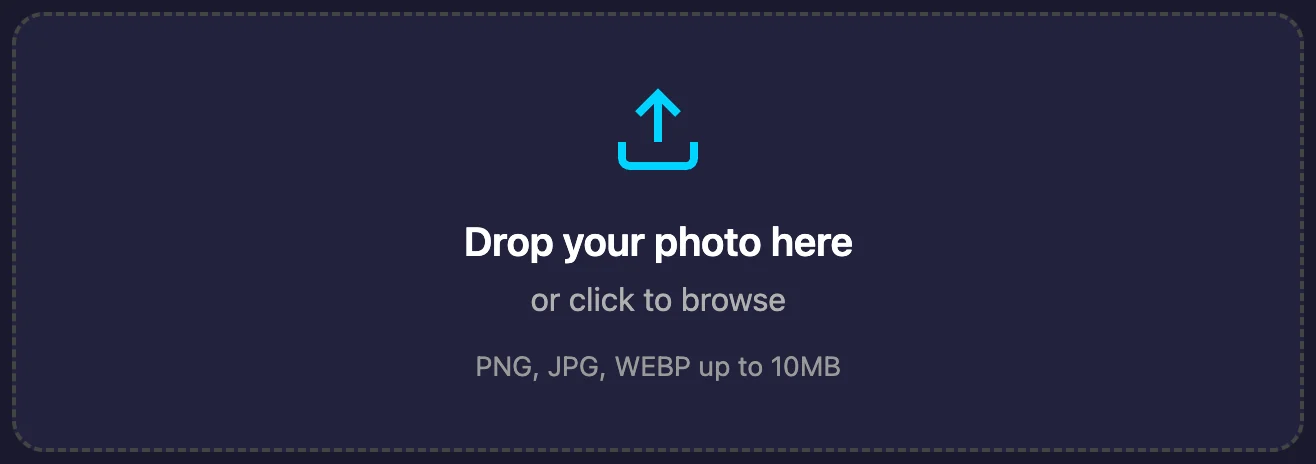
You can upload photos in two ways:
- Drag & Drop - Simply drag your image file onto the upload area
- Click to Browse - Click the upload area to open file picker
Cropping Your Subject
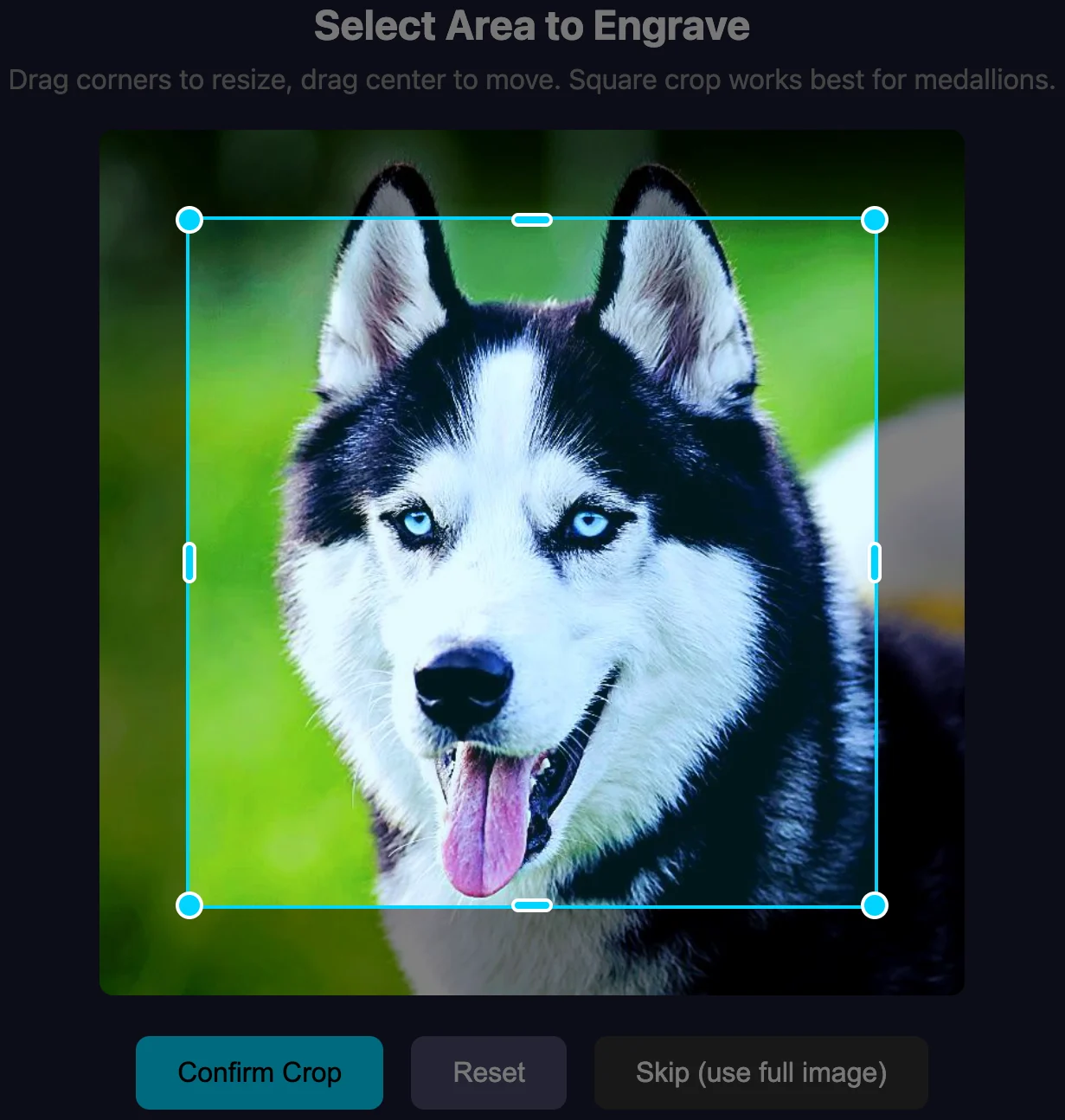
After upload, you'll see the crop interface. This step is crucial for getting clean results.
Crop Controls:
- Corner handles - Drag to resize while maintaining aspect ratio
- Edge handles - Drag to resize in one direction
- Center area - Drag to move the selection
- Click outside - Start a new selection
Crop Actions
- Confirm Crop - Apply the selection and start processing
- Reset - Reset selection to default (centered square)
- Skip - Use the full image without cropping
3. Understanding the Processing Pipeline
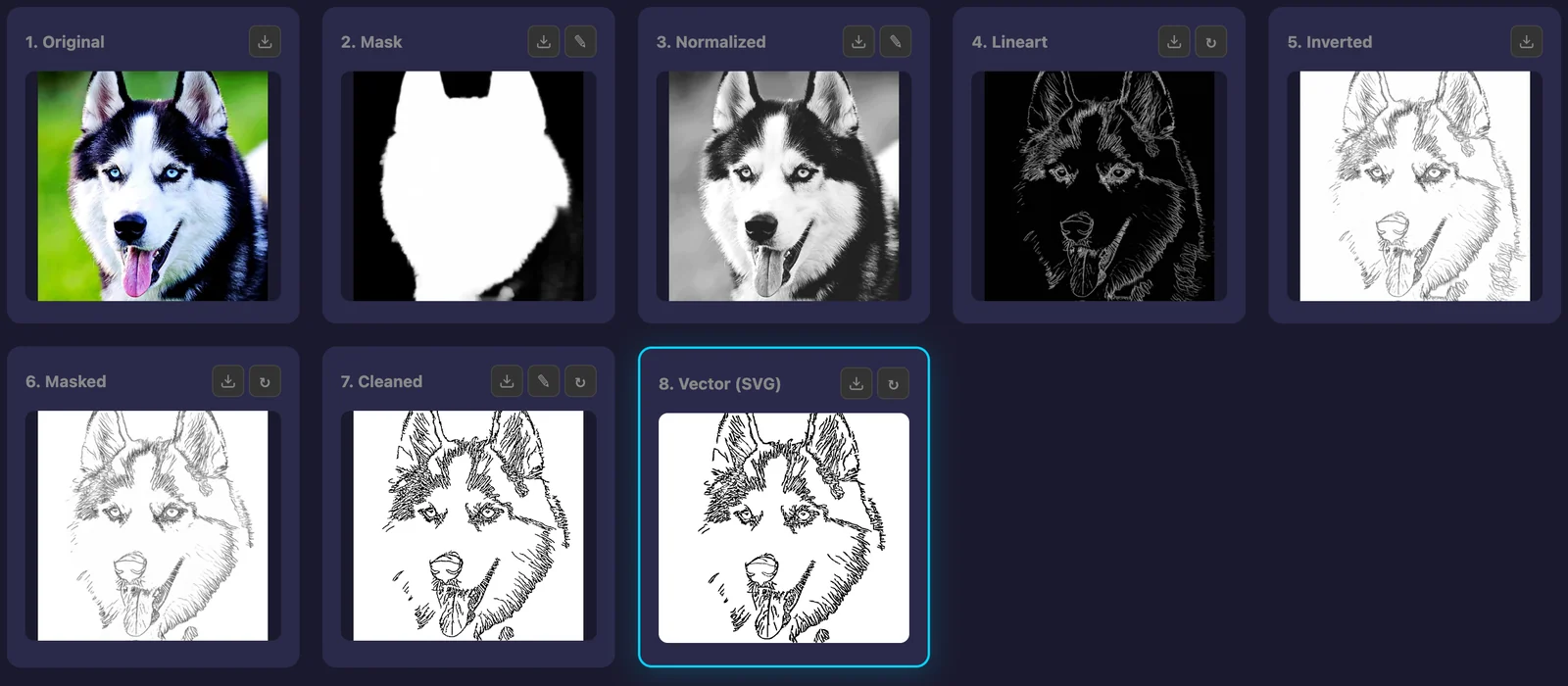
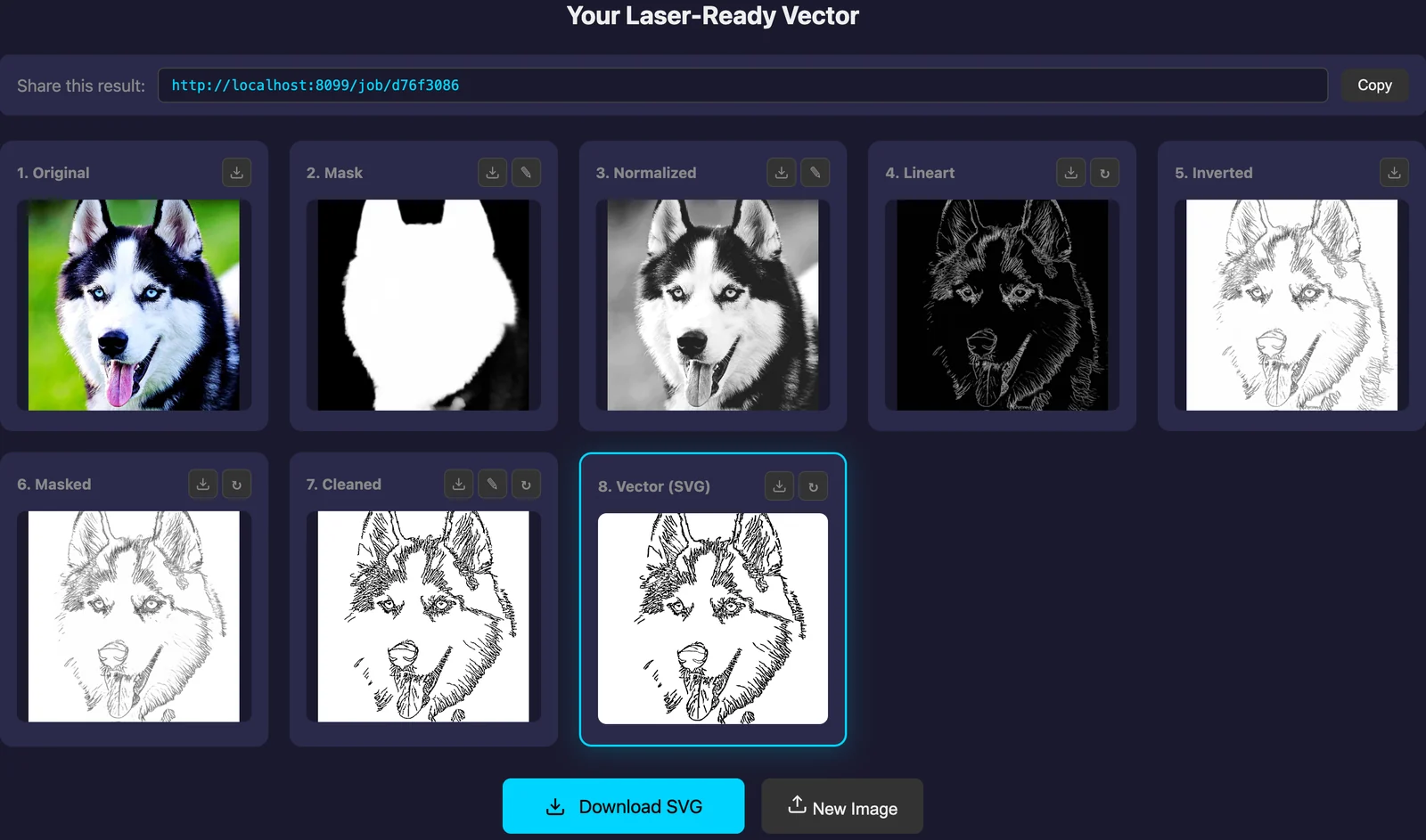
Once you confirm the crop, the AI processes your image through several stages. Each stage produces an intermediate result that you can view and adjust.
Original
Your cropped input image
Mask
AI background removal
Normalized
Contrast & exposure fix
Lineart
AI edge detection
Masked
Background applied
Cleaned
Noise removal
Vector
Final SVG output
Results View
After processing completes, the result opens in the output styles panel (see below), with a Download SVG button right under its settings. Under the panel, the Pipeline steps section holds all intermediate results in a grid; click its title to fold it away. Click any image to view it larger.
Result Actions:
- Click image - Open in lightbox for detailed view
- Re-run button (↻) - Regenerate this step with different parameters; every step after it, down to the vector, is updated automatically
- Edit button (✎) - Open the mask editor (on Mask), local adjustments (on Normalized) or the lineart editor (on Cleaned)
Output Styles
The same result can be downloaded in five styles. Pick one with the tabs above the preview; each style has its own settings, and switching back and forth does not re-run the pipeline. Some pages open on the style they are about, for example the silhouette converter on Silhouette.
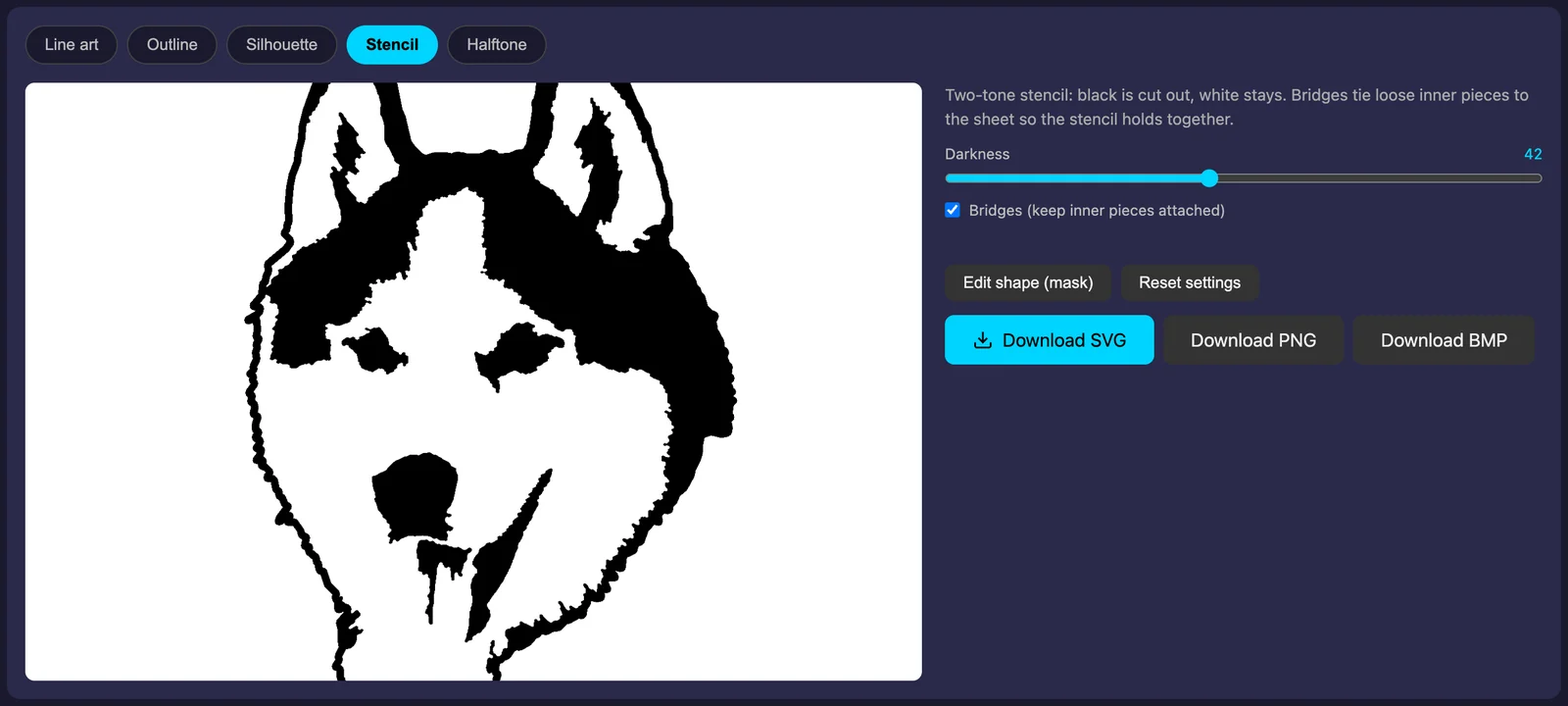
- Line art - The detailed line drawing, fine-tuned through the pipeline steps below it. Edit lines opens the lineart editor
- Outline - The outer contour as one stroke plus the main inner lines. Interior detail sets how many inner lines stay (0 = contour only), Line width sets the contour stroke
- Silhouette - The subject as one solid shape. Edge smoothing rounds the outline
- Stencil - Two-tone: black is cut out, white stays. Darkness sets how much turns black, Bridges tie loose inner pieces to the sheet
- Halftone - Shades turned into dots of varying size. Dot size and Darkness set the screen
For every style except line art, Edit shape (mask) opens the mask editor, and the style re-renders from the corrected shape. Reset settings restores the style's defaults. Download SVG, Download PNG and Download BMP under the settings save the style you are looking at.
4. Mask Editing (Background Removal)
The mask determines which parts of the image are foreground (your subject) and which are background. If the AI mask isn't perfect, you can refine it manually.
Opening the Mask Editor
Click the Edit (✎) button on the Mask result, or Edit shape (mask) under a silhouette, outline, stencil or halftone, to open the mask editor.
Brush Tools:
Manual Brush
Paint directly on the mask with brush and eraser for precise control.
- Add brush - Paint white (include in mask)
- Remove brush - Paint black (exclude from mask)
- Size slider - Adjust brush diameter
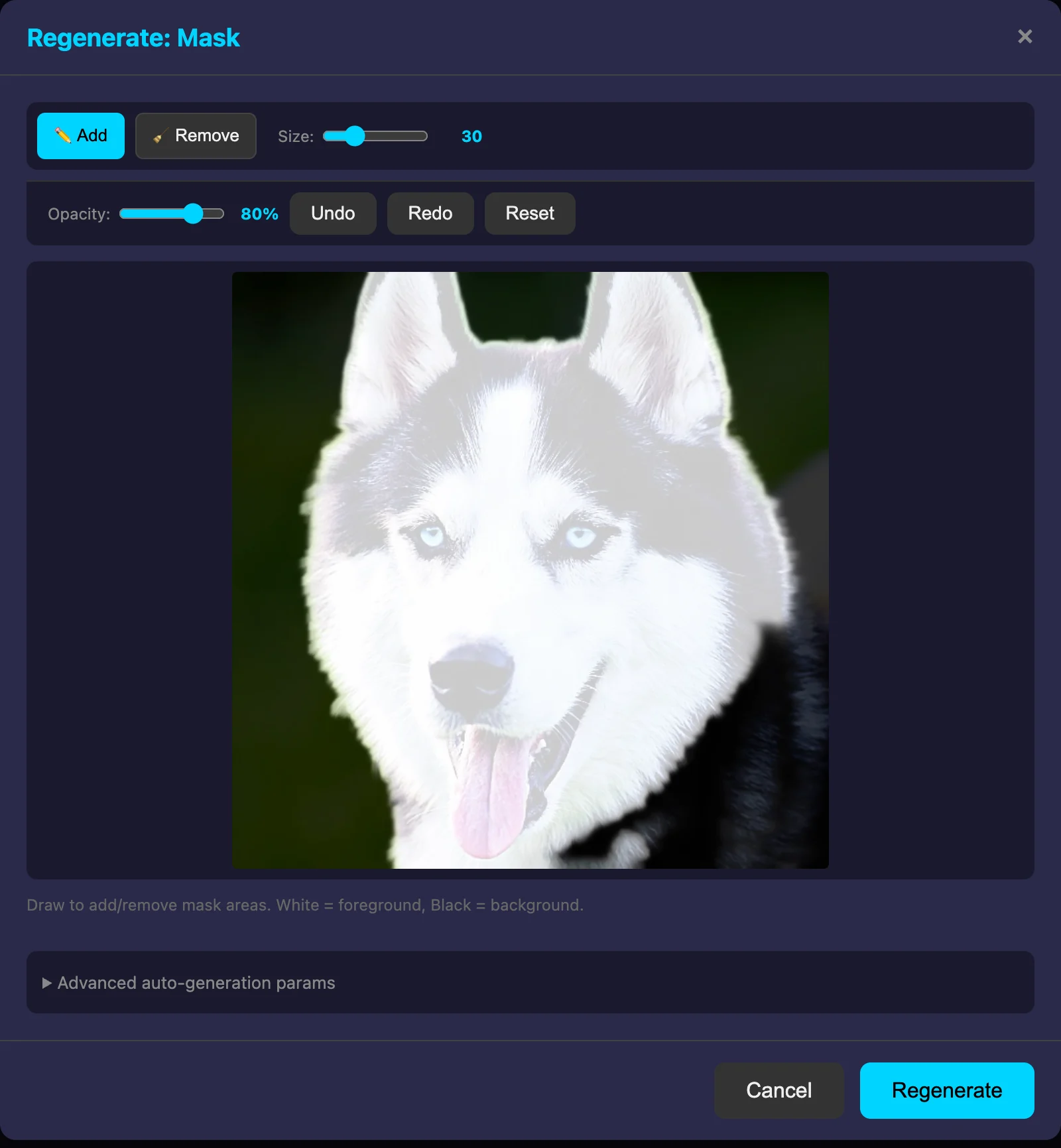
Mask Editor Controls
- Opacity slider - Adjust mask overlay transparency to see the original image
- Undo - Revert last brush stroke
- Reset - Return to original AI-generated mask
- Regenerate - Apply changes and continue pipeline
5. Lineart Editor
The Lineart Editor is a powerful tool for cleaning up and perfecting your lineart before vectorization. Access it by clicking the Edit (✎) button on the Cleaned result.
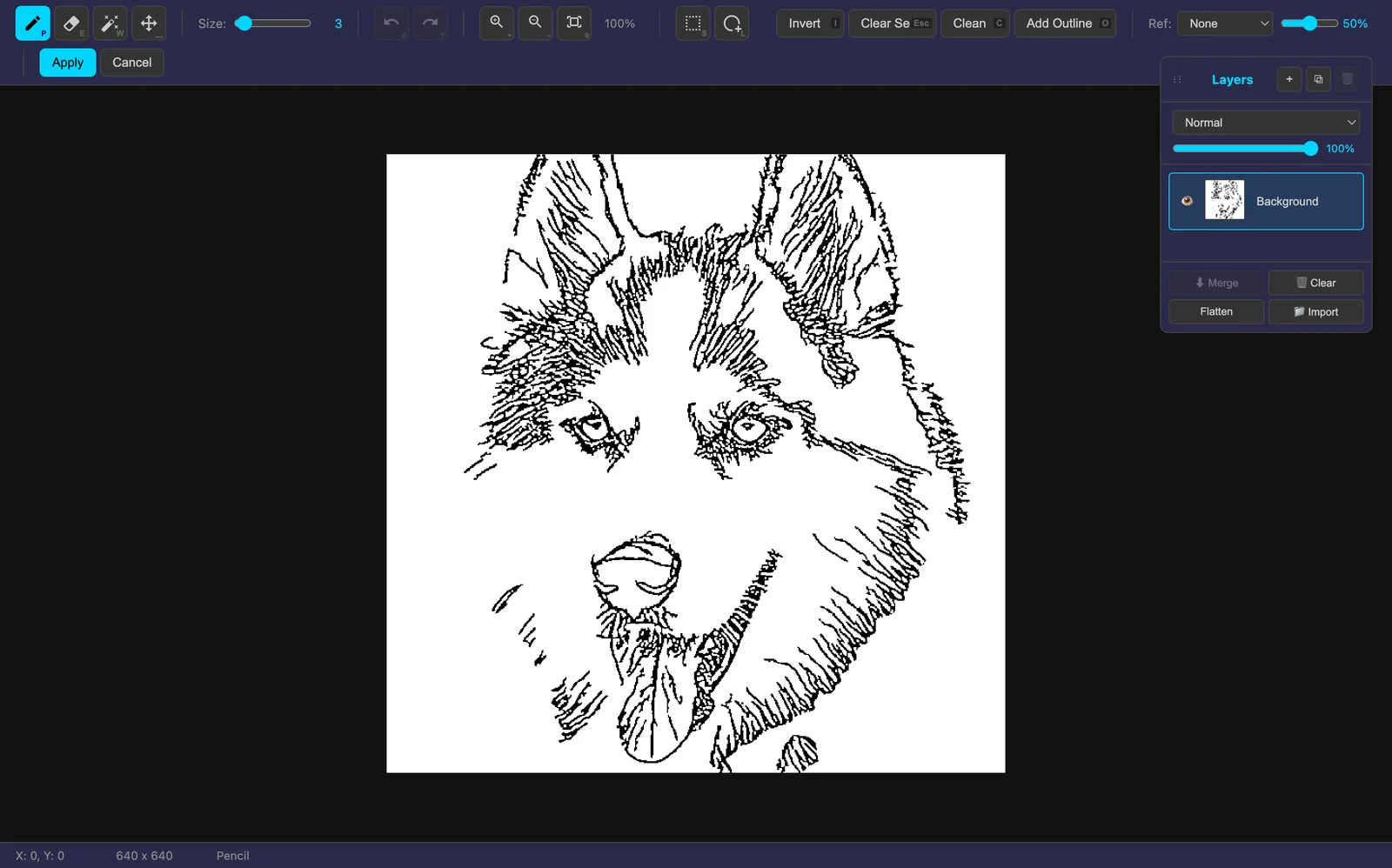
Toolbar Overview
Navigation & Zoom
- Mouse wheel - Zoom in/out
- Middle mouse drag - Pan the canvas
- Fit (F) - Fit image to screen
- 1:1 - View at actual pixel size
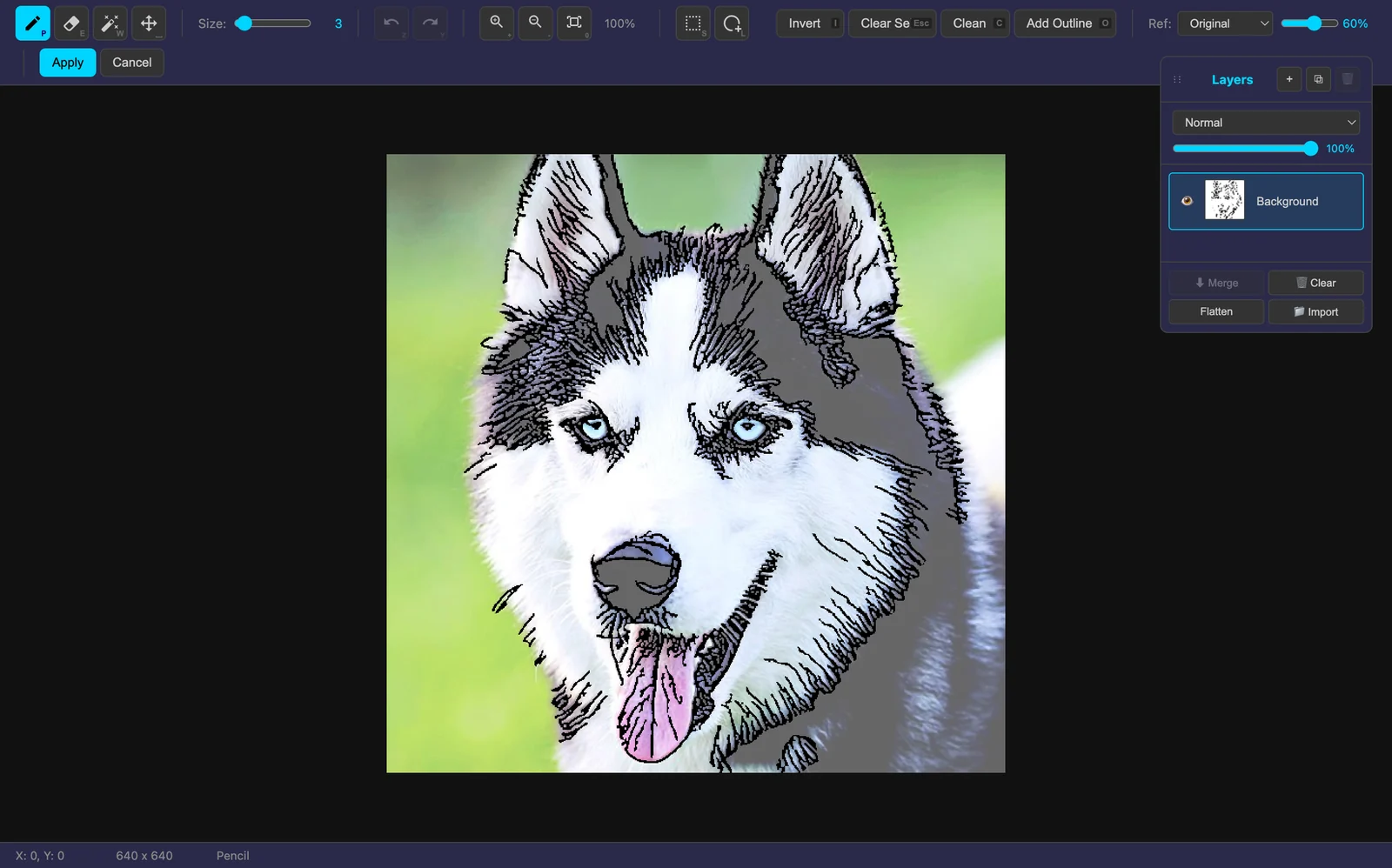
Reference Layer
Use the reference layer dropdown to overlay the original photo, normalized image, or other stages while editing. Adjust opacity to see through.
Keyboard Shortcuts
| D | Draw tool |
| E | Eraser tool |
| R | Rectangle tool |
| S | Select tool |
| F | Fit to screen |
| Ctrl+Z | Undo |
| Ctrl+Shift+Z | Redo |
| [ / ] | Decrease/increase brush size |
| Shift+Click | Draw straight line |
Saving Your Edits
- Apply & Vectorize - Save edits and generate new vector
- Apply Only - Save edits without re-vectorizing
- Cancel - Discard all changes
6. Parameter Fine-tuning
Each processing step has parameters you can adjust. Click the Re-run (↻) button on any result to access its parameters. Whatever you change, the steps after it and the final vector are re-run for you, so the result always matches your settings.
Lightbox Parameter Panel
Click any result image to open the lightbox. For steps that support parameters (Masked, Cleaned, Vector), a "Parameters" button will appear.
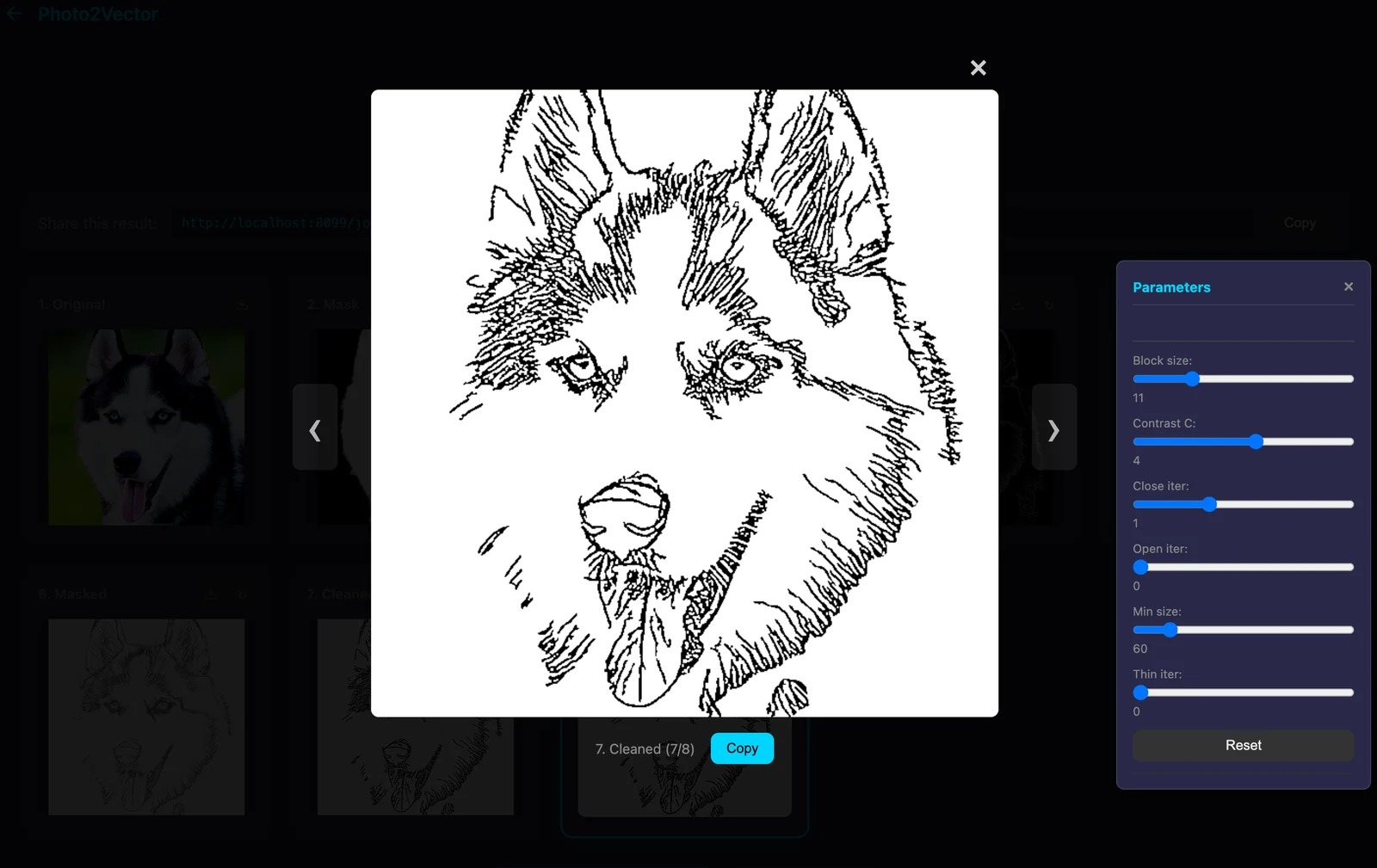
Clean Step Parameters
| Parameter | Effect | Tips |
|---|---|---|
| Block Size | Size of adaptive threshold window | Larger = smoother, Smaller = more detail |
| Contrast C | Threshold sensitivity | Higher = weaker lines, Lower = stronger |
| Close Iterations | Connects broken lines | Use 1-2 for gaps in lineart |
| Open Iterations | Removes small noise | Be careful - can remove fine details |
| Min Component Size | Removes dots smaller than this | Increase to remove more noise |
| Thin Iterations | Skeletonizes lines | Usually leave at 0 |
Vectorize Parameters
| Parameter | Effect | Tips |
|---|---|---|
| Method | Vectorization algorithm | VTracer = quality, Fast = speed |
| Min Area | Minimum path size to keep | Increase to remove tiny artifacts |
| Simplify | Path simplification level | Higher = smoother but less detail |
7. Export & Download
Downloading Your Result
Click Download SVG under the style settings to save your laser-ready vector file. The same button sits under the pipeline steps; with another style selected it names the style, for example Download Stencil SVG. Silhouettes, outlines, stencils and halftones also get a Download PNG button next to the SVG one. Download BMP, for every style including line art, saves a 1-bit bitmap for EZCAD and other fiber laser software that marks bitmaps rather than paths.
File Details:
- Format: SVG (Scalable Vector Graphics), plus PNG for outline, silhouette, stencil and halftone, and a 1-bit BMP (2048 px on the long side) for every style
- Color: Single color (black paths)
- Compatibility: Works with all vector software
Sharing Your Project
Each project gets a unique URL that you can share or bookmark. Find it in the "Share this result" box above your results.
Using in Laser Software
EZCAD / EZCad2
- Open EZCAD
- File → Import → Select your SVG (for filled marking, import the BMP as a bitmap instead)
- Scale to desired size
- Set power/speed for your material
- Mark!
LightBurn
- File → Import or drag SVG
- Select the imported object
- Set layer to "Line" or "Fill"
- Configure speed/power
- Start!
LaserGRBL
- File → Open File
- Select SVG file
- Adjust size in preview
- Set power/speed
- Send to laser
8. Tips & Best Practices
For Best Results
- Use high-contrast photos - Clear subject/background separation helps AI
- Front-facing portraits work best for line art - Side profiles can lose detail, though they make the best silhouettes
- Crop tightly - Less background = cleaner mask
- Check intermediate results - Fix issues early in the pipeline
Troubleshooting
- Mask missing parts of subject
- Use the mask editor brush tool. Paint white over the missing areas to include them.
- Too many small dots in lineart
- Increase "Min Component Size" in Clean parameters, or use the eraser in editor.
- Lines are too thick
- Increase "Thin Iterations" slightly (try 1), or use Clean parameters to adjust threshold.
- Important details missing
- Lower the "Contrast C" value in Clean parameters. Use the editor to draw missing lines.
- Vector has too many nodes
- Increase "Simplify" value in Vector parameters.
Material-Specific Tips
| Material | Recommendation |
|---|---|
| Wood | Thicker lines work better. Consider using "Close iterations" = 1-2 |
| Metal (fiber laser) | Fine details engrave well. Can use thinner lines. |
| Acrylic | Medium line thickness. Clean up noise carefully. |
| Leather | Simpler designs work better. Increase min component size. |
Ready to Create?
Put this knowledge into practice and create your first laser-ready vector
Start Converting