1
Upload Your Photo
Upload the photo you want to engrave - portraits, pets, logos, or any image.
Create LightBurn-ready vectors from any photo. Optimized for CO2, diode, and fiber laser engraving.
Updated · Free · No signup
Drop your photo here
or click to browse
PNG, JPG, WEBP up to 10MB
LightBurn is the most popular laser control software for CO2 and diode laser engravers. It handles everything from design import to machine control, supporting a wide range of laser hardware from brands like Ortur, Atomstack, Sculpfun, xTool, and industrial Ruida-based CO2 machines. LightBurn can process both raster images and vector files.
While LightBurn can engrave photos directly using its built-in image processing, the results are often disappointing - washed out details, poor contrast, and unpredictable depth. Converting your photo to a clean vector SVG first gives LightBurn defined paths to follow, producing dramatically sharper engravings with consistent line quality and better material utilization.
Our converter creates SVG files optimized for LightBurn's import workflow. The output uses clean, single-stroke paths that LightBurn interprets correctly as line engrave operations. There are no filled regions that could confuse layer assignments, no tiny artifacts that cause burn marks, and no unnecessary complexity that slows down processing. Just import the SVG, assign your speed and power settings, and engrave.
AI handles the complex image processing automatically
Upload the photo you want to engrave - portraits, pets, logos, or any image.
Crop to your subject and set the aspect ratio to match your workpiece dimensions.
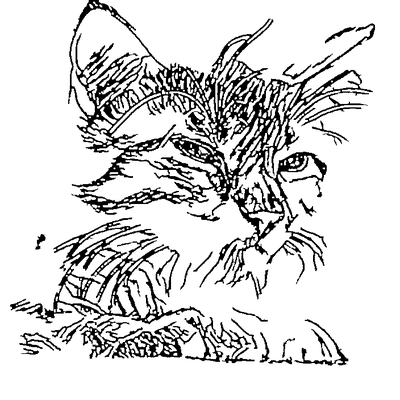
AI extracts clean lineart with line weights optimized for laser engraving depth and quality.
Download SVG, open in LightBurn via File > Import, set your speed/power, and engrave.
Output imports cleanly into LightBurn without broken paths, duplicate nodes, or layer assignment issues that plague generic SVG files.
Adjust detail level for your laser type. Finer detail for fast CO2 lasers, bolder lines for slower diode engravers.
Optimized for LightBurn's line engraving mode. Single-stroke paths produce consistent depth and sharp detail on all materials.
Clean up your design before importing to LightBurn. Remove artifacts, adjust line density, and preview the final result.
Works with CO2, diode, and fiber lasers controlled by LightBurn - Ruida, GRBL, Marlin, and all supported controllers.
No need to manually process photos in image editors. Go from camera photo to LightBurn-ready file in seconds.
Open LightBurn, go to File > Import (or drag the file onto the workspace). The SVG will appear as vector paths on your canvas. Assign speed, power, and line interval in the layer settings, then click Start to engrave.
For CO2 lasers on wood, start with 15-25% power and 200-400mm/s speed. For diode lasers, try 80-100% power at 1000-2000mm/min. Always run a small test piece first, as every laser and material combination is different.
Yes, our output works excellently with diode lasers running LightBurn. Diode lasers are slower than CO2, so we recommend using a slightly lower detail level to keep engraving times reasonable while maintaining clear, recognizable results.
The primary output is optimized for line engraving, but you can also use it for cutting operations in LightBurn. Set the layer to 'Line' mode with higher power for cutting through material. The clean closed paths work well for cut operations.
Higher resolution photos produce better vectors. We recommend at least 800x800 pixels for good results. Phone camera photos typically work very well. Low-resolution or heavily compressed images may produce less detail, but our AI compensates for common compression artifacts.
Upload your image now and get a professional vector file in seconds